
- Team members.
- Customer support.
- Fulfillment and logistics teams.
- Media buyers.
- Partners.
- Store managers.
- Technical staff.
Create a new collaborator
To add a new sub-account, go to the Collaborators section and click New collaborator.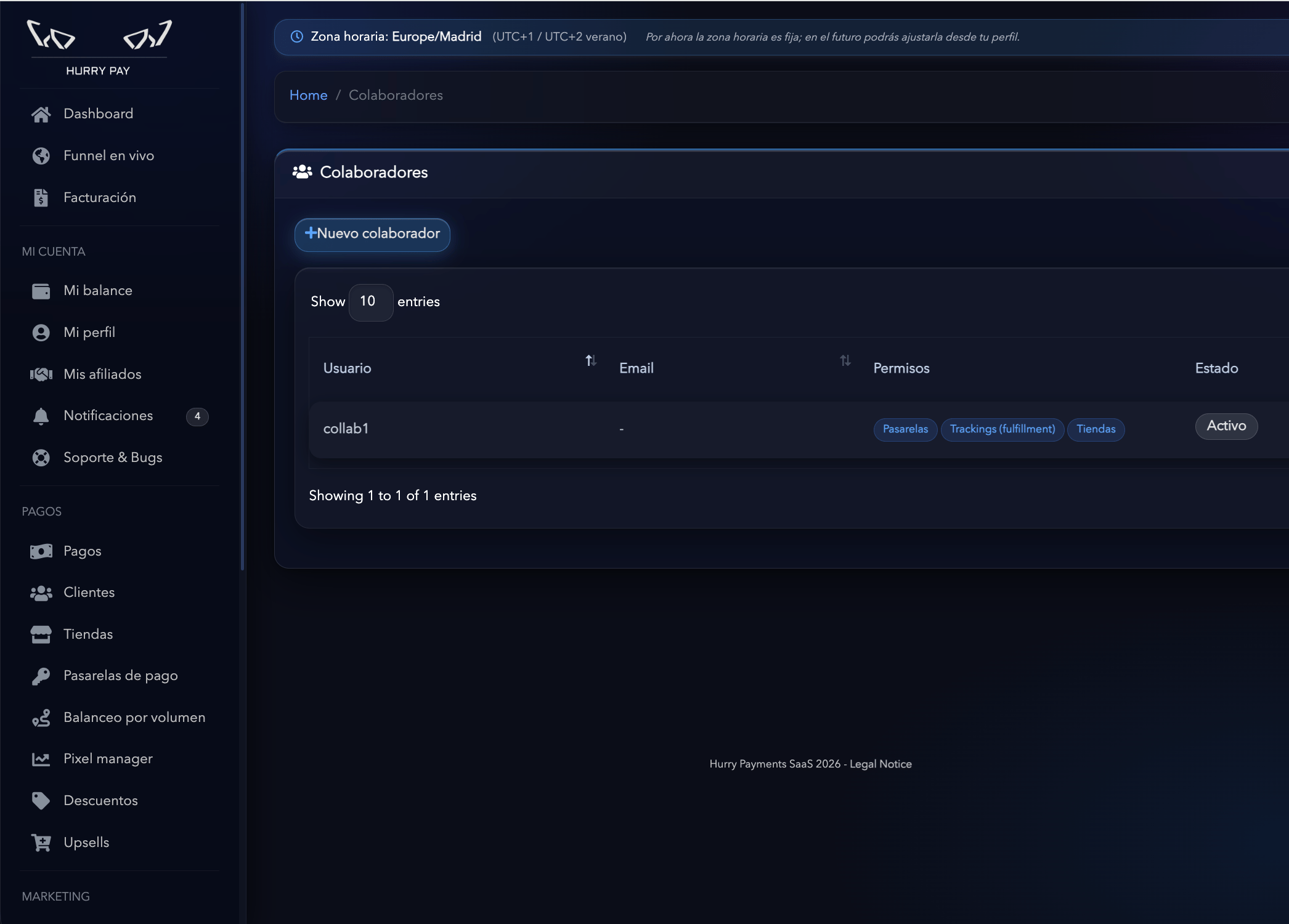
Username
Enter the username the collaborator will use to log in to Hurry.Password
Create an initial password for the account. The collaborator will use these credentials to log in independently.First and last name
Enter the collaborator’s first and last name so they’re easy to identify within the platform.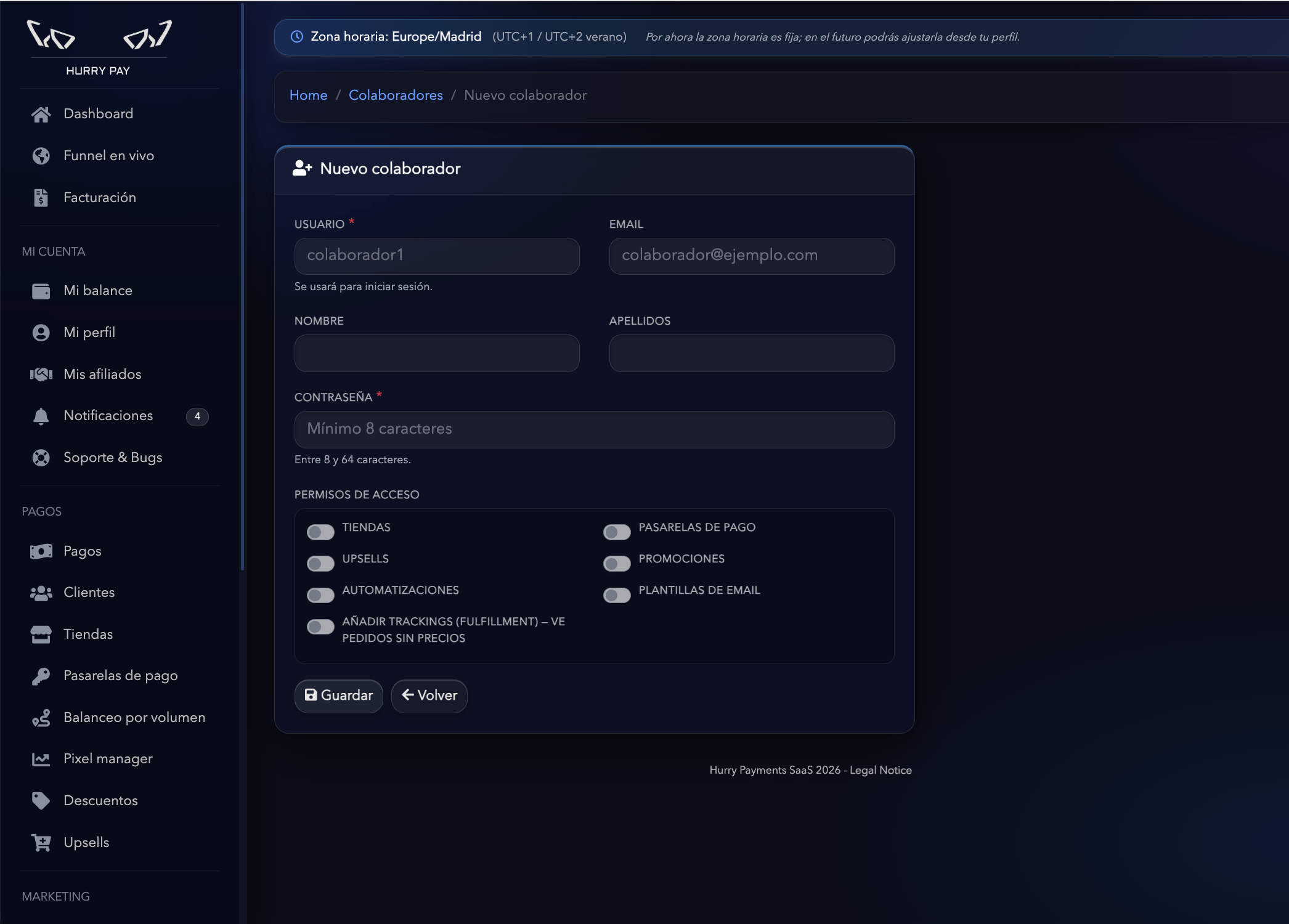
Access permissions
When you create a collaborator, you can decide which Hurry sections they have access to. Each permission can be turned on or off independently, so you can tailor access to each team member’s role.Stores
Lets the collaborator access the information and settings of the main account’s stores. Turn on this permission for users who need to manage or view the settings of connected stores.Payment gateways
Gives access to the payment gateways section. This permission is meant for collaborators who need to manage or review the payment integrations connected to the stores.Recommendation: Limit this permission to users who genuinely need to manage the payment infrastructure.
Upsells
Gives access to the configuration and management of the stores’ upsells. The collaborator can work with the additional offers shown during checkout.Promotions
Gives access to the promotions section to manage the campaigns or discounts set up in Hurry. It’s useful for marketing teams or people in charge of sales promotions.Automations
Gives access to the automations section. The collaborator can work with automated flows linked to events such as paid orders or abandoned carts. Depending on the setup, these automations can combine Email and SMS Steps.Email templates
Gives access to the email templates section. This permission is useful for marketing teams, copywriters or people in charge of creating and maintaining customer communications.Add tracking (Fulfillment)
This permission is designed for logistics and fulfillment teams. The collaborator can access the orders they need to do their job and add shipment tracking information. For operational privacy, users with this type of access can view orders but don’t see prices or the associated amounts. This permission is especially useful if you work with:- An external warehouse.
- A fulfillment agent.
- A logistics provider.
- Staff who only prepare and ship orders.
Example permission setups
You can combine permissions according to each collaborator’s role.
These combinations are just examples. You can adapt permissions to your team’s structure.
Save the collaborator
Once you’ve filled in the information and selected the permissions, click Save. The new collaborator appears in the list and can access Hurry with their own credentials.Manage collaborators
From the Collaborators section you can see the users linked to your account. When a team member’s responsibilities change, review their permissions to make sure they only have access to the sections they need.Recommendation: Always create a separate account for each person on your team and avoid sharing the main account’s credentials.