
1. Open the Stripe Dashboard
Log in to your Stripe account with the credentials of the company that runs the white website. Once inside, check that you’re working in the correct account and, when you do the final setup, in the right environment. 📸 Recommended screenshot: Screenshot of the main Stripe Dashboard, highlighting where the side menu is.2. Open the Product catalog
In the Stripe Dashboard: More → Product catalog Depending on the language or version of the Dashboard, Stripe may show it directly as Product catalog. Stripe uses this section to centralize the products and services the business offers.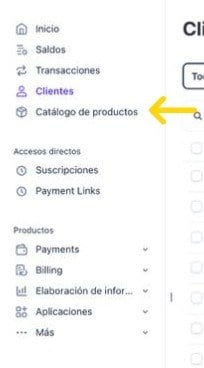
3. Create a new product
In the Product catalog, click: + Add product The product creation form opens.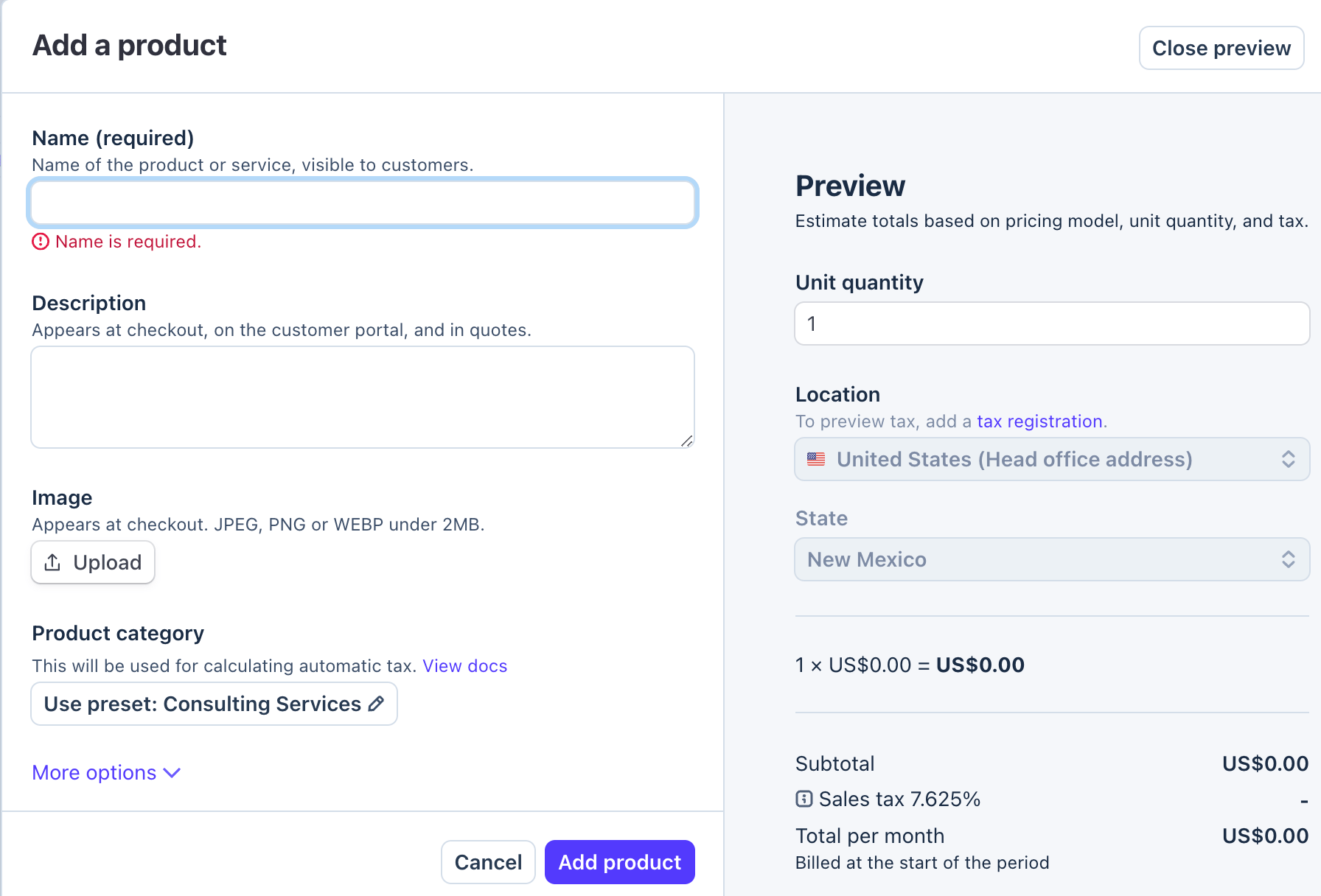
4. Choose the right product to create
This is one of the most important points. The recurring product you create in Stripe must correspond to a service or subscription your business can actually offer and that is consistent with the content of your white website. We don’t recommend creating a generic product, or one unrelated to the store, just to have a subscription in Stripe. The idea is to keep the following consistent:- The company’s activity.
- The content of the white website.
- The products or services shown on the website.
- The product created in Stripe.
- The subscription amount and frequency.
Example
Imagine the white website is a store focused on skin care and skincare products. A consistent recurring product could be: Name: Skincare Club Description: Monthly subscription that gives access to exclusive customer benefits, personalized recommendations and a monthly selection of skincare products. Price: €29.90 / month This service makes sense because it’s directly related to the activity the customer can see on the website. Another example: if the website focuses on fitness products, there could genuinely be a service such as: Fitness Members Club — €19.90 / month with monthly access to content, training programs, member discounts or other benefits the company actually provides. What matters isn’t using these specific names, but that the subscription has a real commercial justification within the business.Don’t invent benefits, memberships or services the company doesn’t offer. If Stripe reviews the activity, website, business description or catalog, all the information should be consistent.
5. Fill in the product information
In the creation form, fill in at least:Name
Enter a clear name that makes it easy to understand what the customer is signing up for. For example: Skincare Club Avoid overly generic names such as:- Product 1
- Subscription
- Monthly Payment
- Service
- Test Product
Description
Add a simple, realistic description of what the subscription includes. For example: “Monthly subscription for Skincare Club members, with access to exclusive benefits, recommendations and perks for our store’s customers.” Stripe notes that this description may appear in Checkout and in the customer portal, among other places.Image
If the service has an image, creative or visual element related to the brand, you can add it. It isn’t mandatory, but it helps the product look properly presented. Stripe supports product images that can later be shown during Checkout.6. Set the price as recurring
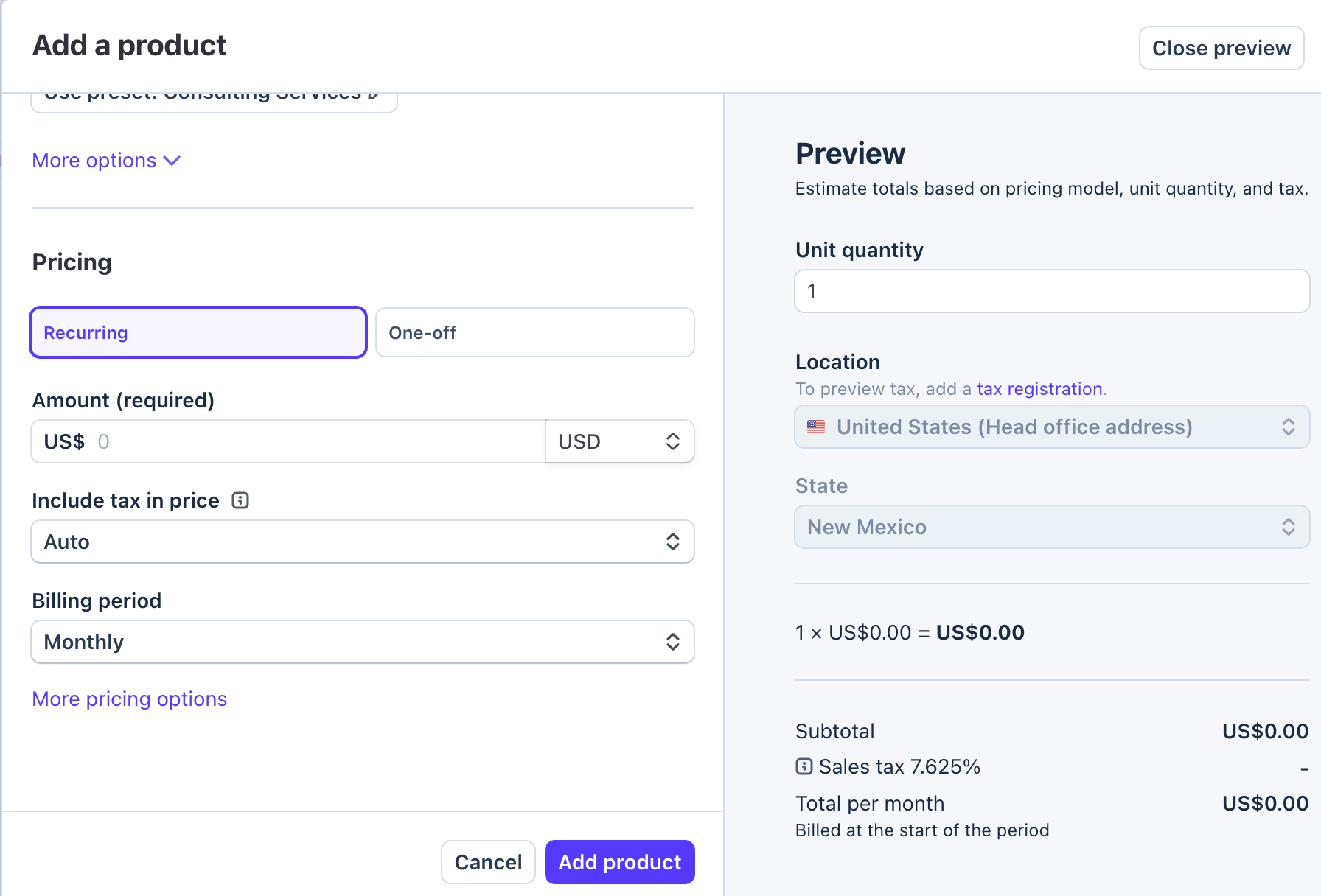
In the price section, the goal is to create a subscription price and not a one-time payment. Select: Price type: Recurring For a simple monthly membership or subscription model, you can usually use a Flat rate model, where the customer pays the same amount each cycle. Stripe provides this model specifically for subscription services.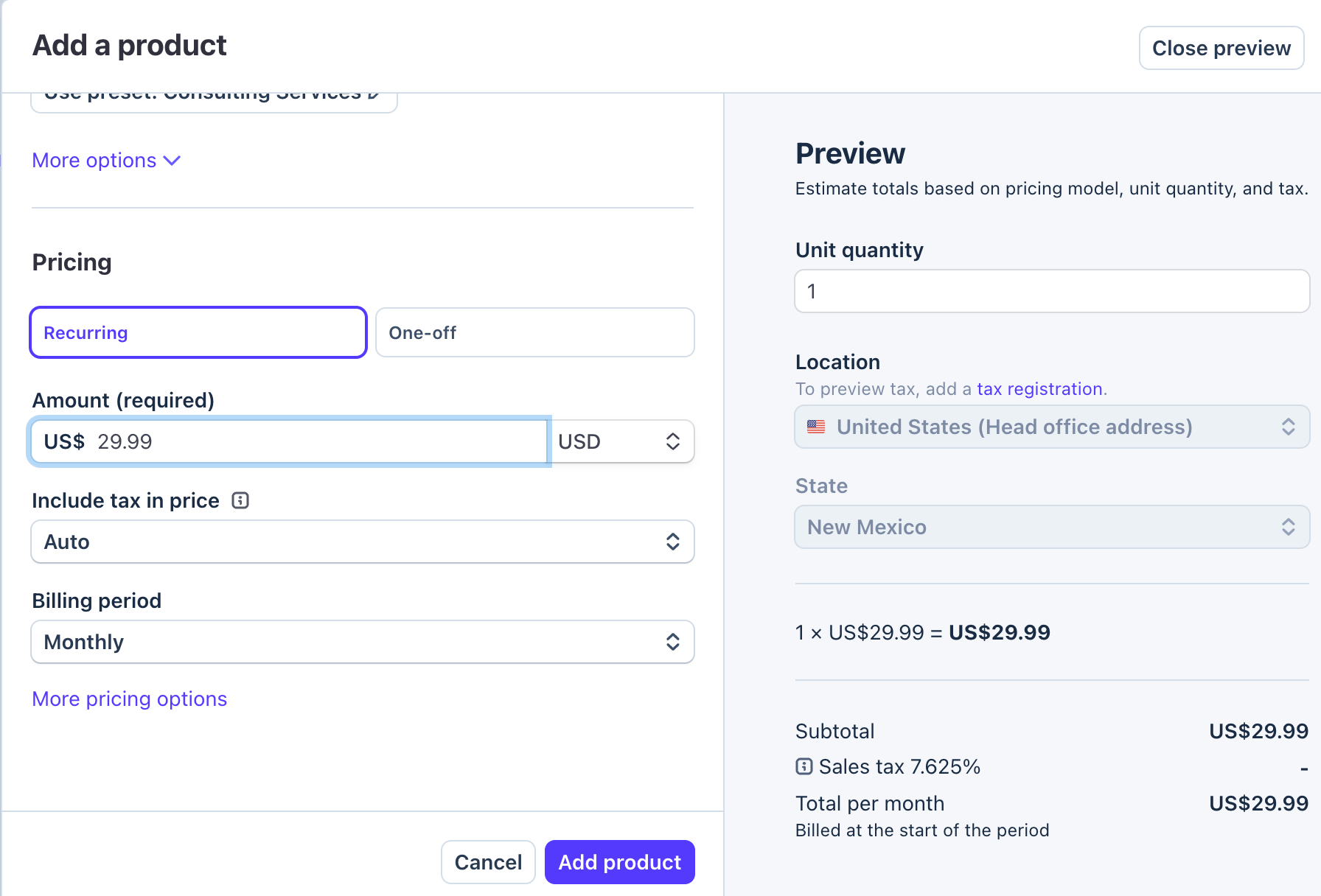
7. Enter the subscription amount
Enter the real amount your subscription will have. For example: 29.90 EUR The currency should also be consistent with the one the store normally uses. For example, if your white store operates mainly in Spain and shows prices in euros: Currency: EUR Amount: €29.90 You don’t need to use this specific amount. The price must match the real value of the service you’re offering.8. Set the monthly frequency
Under Billing period, select: Monthly The price will then be set up as: €29.90 every month Stripe allows one product to have different recurring prices — for example, monthly and yearly — but for this setup you need at least the monthly recurring price. The setup should look roughly like this: Pricing model: Flat rate Type: Recurring Amount: €29.90 Billing period: Monthly9. Review the setup before saving
Before creating the product, check that all the information is correct. For example: Product: Skincare Club Description: Monthly subscription for store members. Price: €29.90 Type: Recurring Billing: Monthly It’s also a good idea to check again that the product makes sense when compared with your white website. A simple question you can ask yourself is: “If someone from Stripe visits our website and then sees this product in our Stripe catalog, will they naturally understand why our business offers this subscription?” If the answer is yes and the service really exists, the setup is consistent. If, on the other hand, the website sells a completely different category of products and Stripe shows a subscription to a service that isn’t mentioned or isn’t part of the business, it’s best to review the offer first.10. Create the product
When all the details are set up correctly, click: Add product or the equivalent button in your version of the Dashboard. Stripe saves the product along with its recurring price.11. Check the product was created correctly
Once saved, open the product again and check that the corresponding price appears. You should see something like: Skincare Club 29.90 EUR / month It’s important to confirm it shows as recurring and that the interval is monthly. Stripe distinguishes between products and prices: the product represents what is sold, and the price sets the amount, the currency and, for subscriptions, how often the charge is made.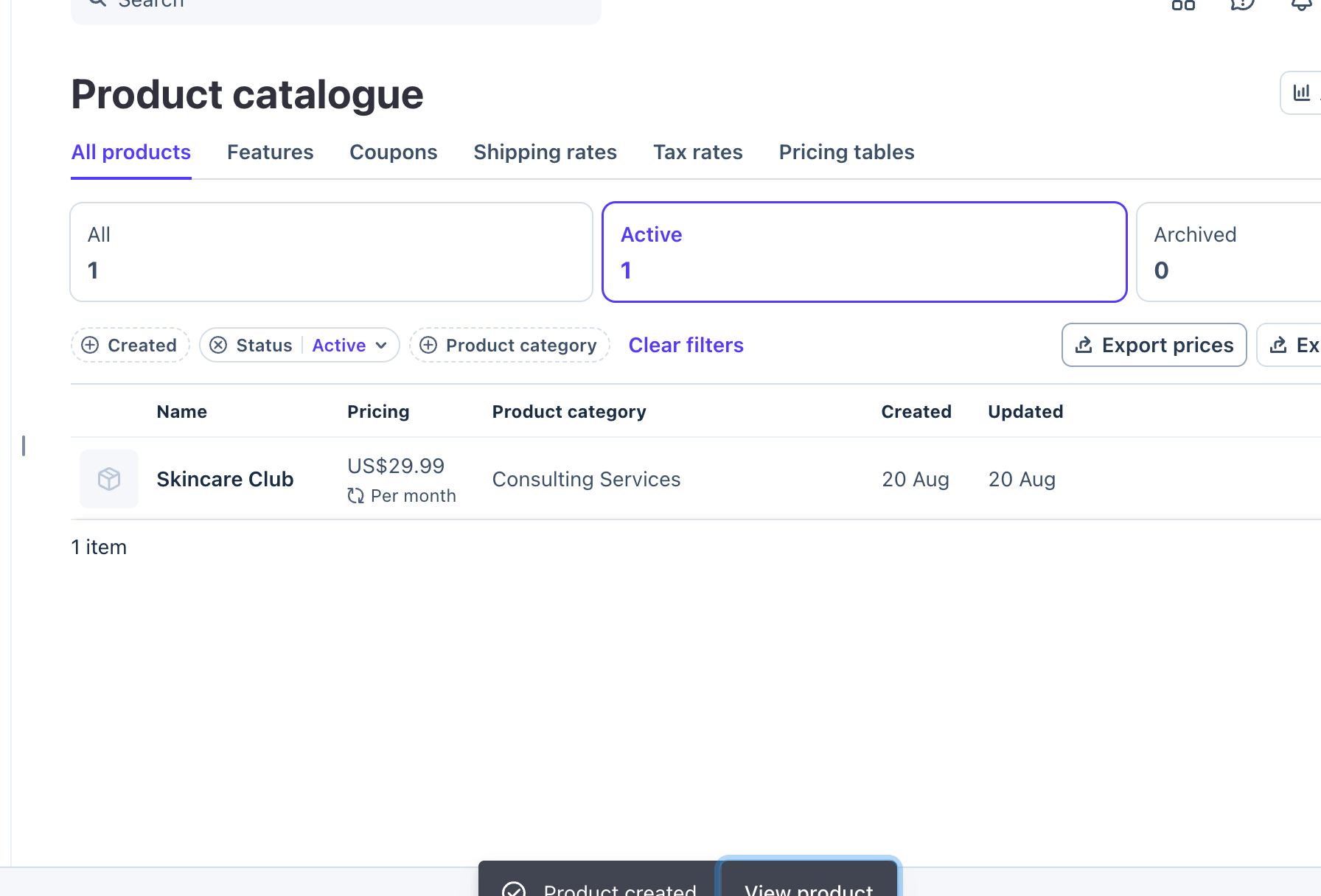
Setup summary
The end result must be a product that meets these conditions:- It’s a real product or service.
- It’s related to the activity of the white website.
- The name clearly describes what the customer is signing up for.
- The description explains what it includes.
- The price is consistent with the service.
- It’s set up as Recurring.
- The billing cycle is set to Monthly.
- The currency is consistent with the one the business uses.