
Step 1. Basic information
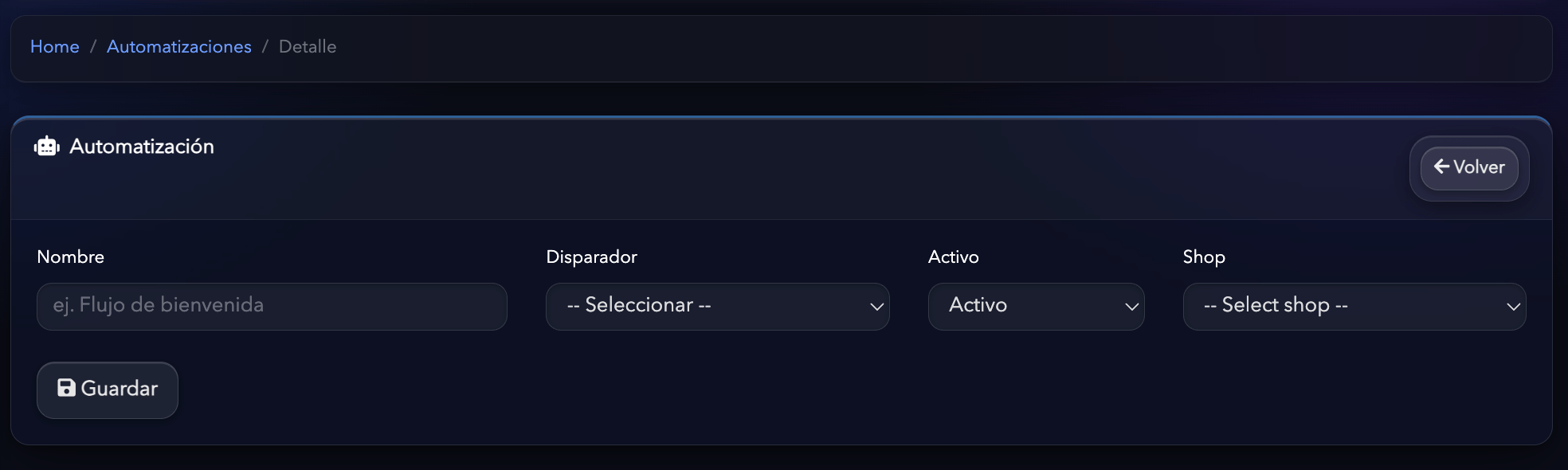
First, set up the SMS template’s basic information.Name
Enter an internal name that makes the template easy to identify. For example:- Order confirmation SMS
- Abandoned cart SMS
- Cart reminder 24h
- Customer win-back SMS
Status
Select whether the template is Active or Inactive. An inactive template can be saved and edited, but it won’t be available to use in automations.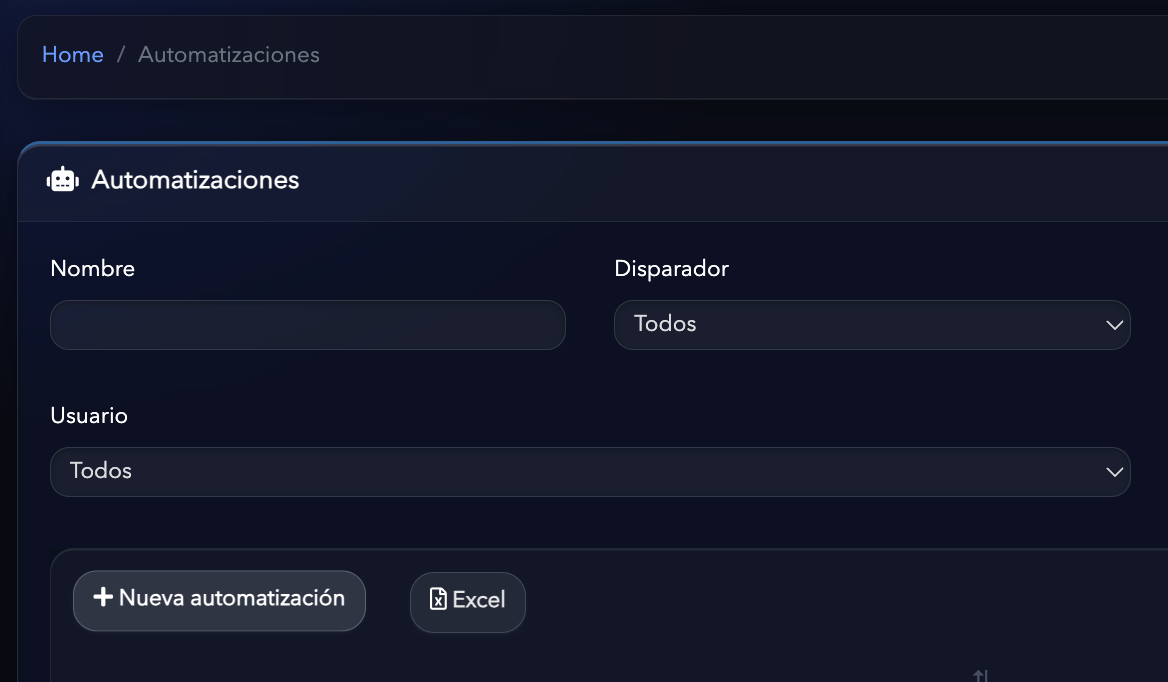
Step 2. Create the SMS content
In the content field you can write the message the customer will receive on their phone. For example:Hi {{customer.name}}! 👋 We've saved your cart. You can complete your purchase here: {{cart.url}}
Or for an order confirmation:
Thanks for your purchase, {{customer.name}}! 🎉 We've received your order {{order.id}} for a total of {{order.total}}.
We recommend short, clear and direct messages, especially when they include links or calls to action.
Step 3. Use dynamic variables
You can use variables in the SMS content to automatically personalize each message with customer, order or cart information. The currently available variables are:
For example:
Hi {{customer.name}}, your order {{order.id}} has been confirmed.
When Hurry sends the SMS, the variables are automatically replaced with each customer’s information.
Step 4. Check the SMS length and cost
The cost of an SMS depends on its length. Long messages can be split into several segments and therefore cost more. Hurry shows the message length to help you control the content before using the template in an automation. The base price is 0.20 USD per SMS, although the final cost can be higher if the content exceeds the length of a single segment.Tip: Keep messages short and include only the information you need. This makes the message easier to read and helps control campaign costs.