How it works
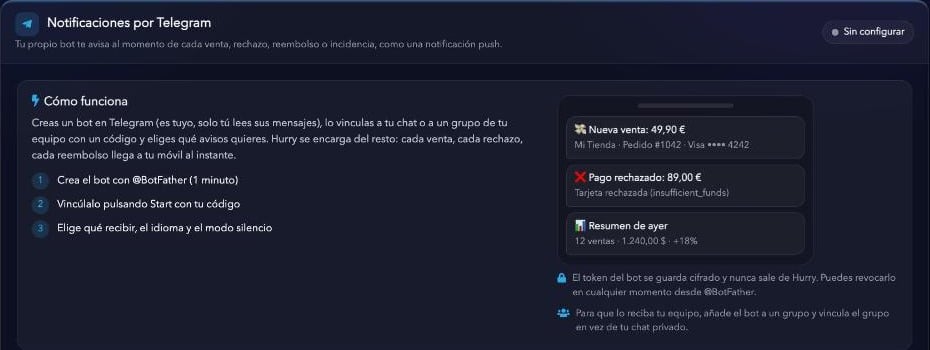
The setup has three steps:- Create a bot in Telegram with @BotFather (1 minute).
- Link it to your chat or to a team group by tapping Start with your code.
- Choose what to receive, the language and quiet mode.
- 💸 New sale: €49.90 · My Store · Order #1042 · Visa •••• 4242
- ❌ Payment declined: €89.00 · Card declined (insufficient_funds)
- 📊 Yesterday’s summary · 12 sales · $1,240.00 · +18%
The bot token is stored encrypted and never leaves Hurry. You can revoke it at any time from @BotFather.
Step 1: create your bot
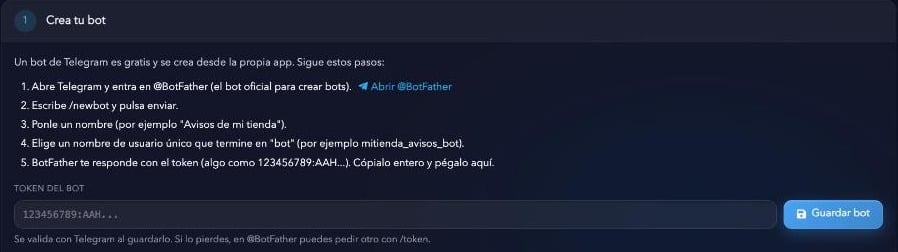
A Telegram bot is free and is created from the app itself.1
Open @BotFather
Open Telegram and go to @BotFather, the official bot for creating bots. From Hurry you can use the Open @BotFather link.
2
Create the bot
Type
/newbot and send it.3
Give it a name
For example,
My store alerts.4
Choose a username
It must be unique and end in
bot, for example mystore_alerts_bot.5
Copy the token
BotFather replies with the bot token (something like
123456789:AAH...). Copy all of it.6
Save it in Hurry
Paste the token into the Bot token field and click Save bot. Hurry validates it with Telegram when you save it.
Step 2: link your chat
This step unlocks once you’ve saved the bot token in step 1. To link it, open your bot in Telegram and tap Start with the code Hurry shows you (the same as typing/start CODE). From then on, alerts are sent to that chat.
Receive alerts in a group
If you want your team to receive them, link a group instead of your private chat:- Create a group in Telegram and add the bot.
- Type
/start CODEin the group, or paste the group ID manually.
Prefer to enter the chat ID manually?
Prefer to enter the chat ID manually?
For groups or channels, add the bot to the group and paste its ID into Hurry (it’s a negative number). You can look it up with bots such as @userinfobot or @getidsbot. Then click Link this chat.
Step 3: choose what to receive
Turn on only the alerts you want to see on your phone. The CRM bell notifications stay the same: Telegram is just one more channel.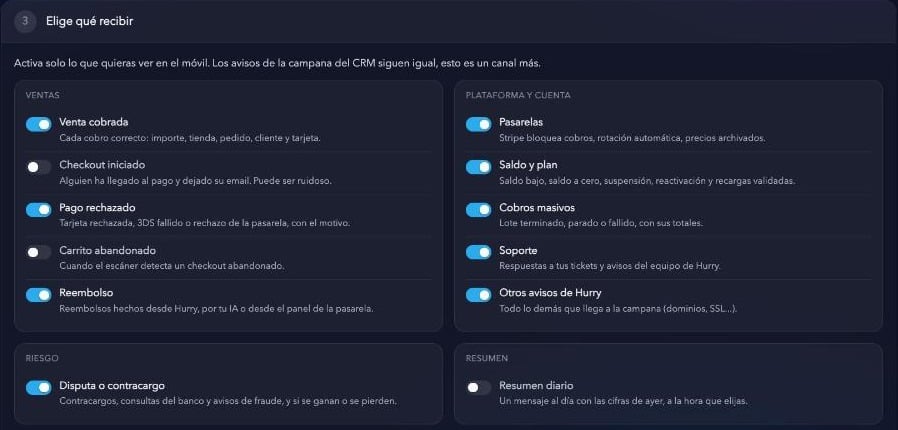
Sales
Risk
Platform and account
Summary
Alert settings
Below the toggles you have these options:
- Only sales from: minimum amount, in USD, to receive sale alerts. Leave it empty or at 0 to receive all sales.
- Message language: Spanish, English, Italian or French.
- Time zone: used for quiet mode and for the daily summary time.
- Daily summary time: at this time you receive two messages: yesterday’s summary (compared with the day before) and today’s figures up to that time (compared with yesterday at the same time). It includes sales, declines, refunds and disputes. For it to work, also turn on Daily summary in the toggles.
Quiet mode
Set a time window with From and To. During those hours nothing is sent and, when the window ends, you receive everything accumulated in a single message. Click No quiet mode to turn it off.
Send a message and recent sends
In Send a message you can type some text and click Send: it reaches your chat through the bot. It’s a quick way to check everything works. Your AI can also send you messages if you’ve connected it from Connect with AI. In Recent sends you see the history of messages sent by the bot. Click Refresh to update it. If a send fails, the reason appears here.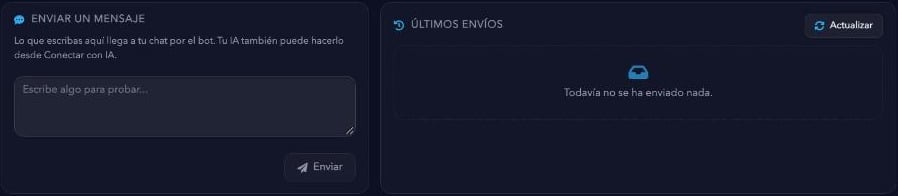
Frequently asked questions
I'm not receiving anything
I'm not receiving anything
Check that the main notifications toggle is on, that the chat is still linked and that you haven’t blocked the bot in Telegram. Click Send test message: if it fails, the reason appears in Recent sends.
Can my team receive it too?
Can my team receive it too?
Yes. Create a group in Telegram, add the bot and link the group (type
/start CODE there, or paste the group ID manually). All members will see the alerts.What happens if my token leaks?
What happens if my token leaks?
Whoever has the token can post as your bot, but can’t see your Hurry data. Go to @BotFather, request
/revoke and save the new token in Hurry.Does this replace the CRM notifications?
Does this replace the CRM notifications?
No. The CRM bell stays the same. Telegram is just one more channel you can turn off whenever you want.