
Note: Volume-Based (sequential) mode is in BETA.
How it works
Hurry has two routing modes:
In volume mode you define a sequence of rules. Each rule is a credential with a USD target. A cursor marks the active rule: when that rule reaches its target, the cursor moves to the next one. When the last one is completed, it goes back to the first and starts a new cycle.
Example: with two 500 USD rules (Stripe and Whop), the first 500 USD are charged through Stripe, the next 500 through Whop, and then it goes back to Stripe.
Before you start
You need the gateways you want to split volume between connected in Payment providers. They must be active to receive payments.Step 1. Open Volume Routing
In the side menu, under Payments, open Volume Routing.
Step 2. Choose the routing mode
In Routing mode, select Volume-Based (sequential).
Note: Switching modes doesn’t delete any settings. You can go back to Percentage (default) whenever you want and your rules are kept.
Step 3. Create the rules sequence
In Rules sequence, click Add rule. A new row appears along with the Unsaved changes notice.
Rules run from top to bottom. To change the order, drag the handle on the left or use the arrows. To delete a rule, use the trash icon.
Note: If a rule shows the INACTIVE label, its credential is disabled in Payment providers. Activate it there so it can receive payments.
Step 4. Save
Click Save rules. Changes aren’t applied until you save. The rule currently receiving payments is marked ACTIVE NOW with a progress bar.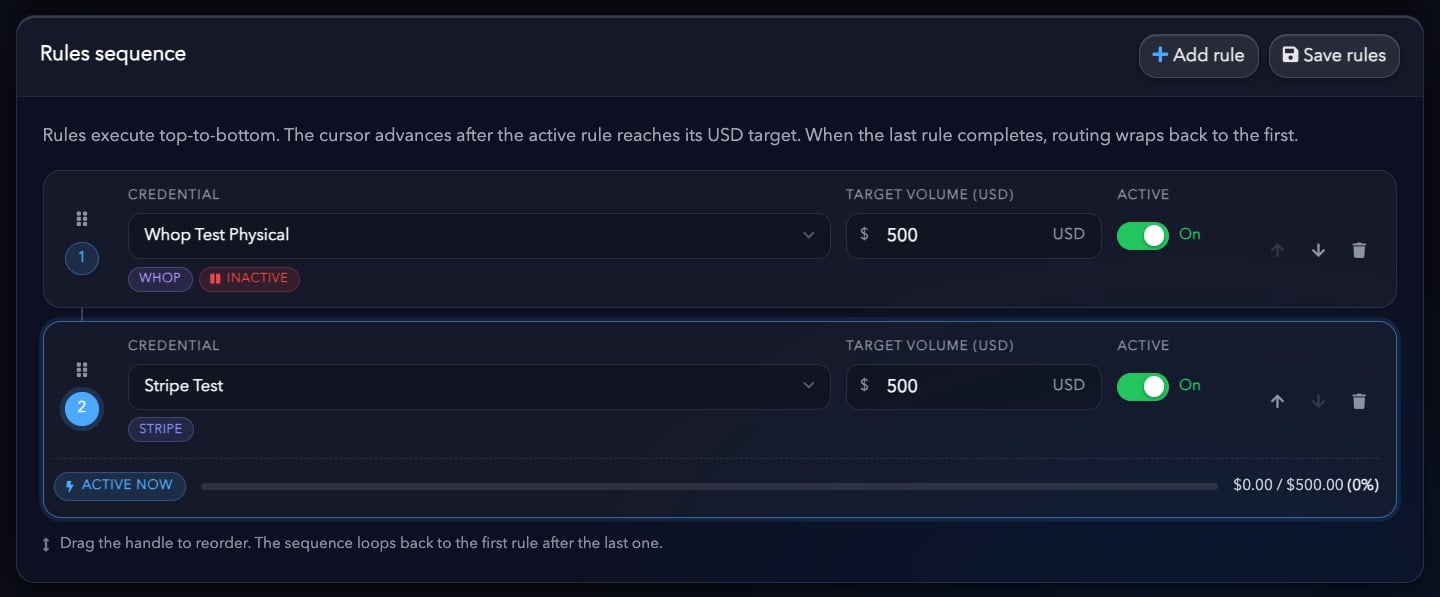
Step 5. Track the status
The Current state block shows where you are in the sequence:
Step 6. Advanced options (optional)
In Routing mode, click Advanced options to expand them.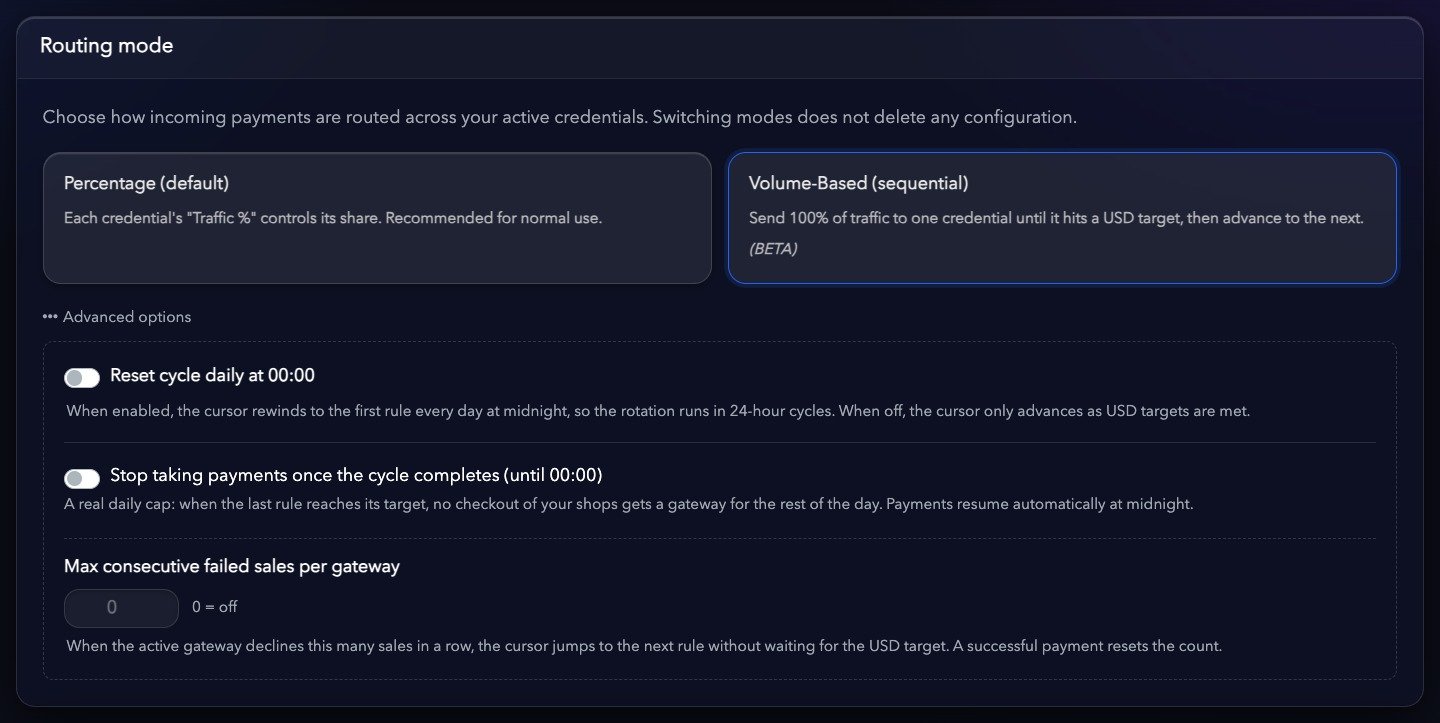
Note: 00:00 refers to the platform’s time zone (Europe/Madrid).